
How to connect Snowflake to Excel with live, governed data
Connect Snowflake to Excel and query live data as native formulas — no ODBC drivers, no DSN setup, no manual exports. A governed alternative to Power Query, with per-user permissions.


Your data lives in Snowflake. Your work happens in Excel. Getting the two to talk — reliably, freshly, and without a spreadsheet full of stale numbers — is one of the most common asks in any data team’s inbox. This guide walks through every way to connect Snowflake to Excel, what each one costs you in setup and maintenance, and how to get live Snowflake data into the grid as native formulas without touching an ODBC driver.
TL;DR
- There are three practical ways to connect Snowflake to Excel: the Snowflake ODBC driver with Power Query, the Snowflake Connector for Excel, and a governed BI add-in that brings the data in as native formulas.
- The driver route works, but you own the plumbing: download and install the Snowflake ODBC driver (32-bit or 64-bit to match your Excel), configure a DSN or connection string, wire up authentication and SSO, then refresh manually — with no shared metric definitions and no per-user governance.
- Manual export to CSV is what most people fall back to. It’s fast once and stale forever.
- The Astrato Excel Add-in takes a different path: it connects Excel to your Snowflake data through Astrato’s governed semantic layer, so trusted datasets land in the grid as refreshable Excel formulas. No ODBC driver, no DSN, and every refresh follows the signed-in user’s permissions.
- The same approach works for Databricks and BigQuery — the warehouse changes, the workflow doesn’t.
- It runs on Excel for Windows, Mac and the web.
Why “connect Snowflake to Excel” is such a common request
Snowflake is where the governed, current version of the business lives — every transaction, every cost centre, every event, modelled and access-controlled. Excel is where a huge amount of the actual thinking still happens: the forecast, the reconciliation, the ad-hoc pull a manager asks for at 4pm, the bespoke output a report needs to be in.
So people reach for a bridge. They search “connect Snowflake to Excel”, “query Snowflake from Excel”, or “Snowflake to Excel live connection”, and they find a handful of options — each of which gets some data into a spreadsheet, but leaves a trail of drivers, refresh buttons, and ungoverned copies behind it.
The goal isn’t just to load a table once. It’s to get warehouse data into Excel in a way that stays fresh, stays governed, and doesn’t turn every analyst into a part-time database administrator. Let’s look at the options in that light.
The three ways to connect Snowflake to Excel today
1. The Snowflake ODBC driver with Power Query
This is the standard, Microsoft-native route, and for many teams it’s the first thing they try. Power Query — the “Get Data” experience built into Excel — can talk to Snowflake through an ODBC data source. In outline, the steps are:
- Download and install the Snowflake ODBC driver. Match the architecture to your Office install — the 64-bit version for 64-bit Excel, the 32-bit version for 32-bit Excel. Mixing them is the single most common reason the connection silently fails.
- Configure an ODBC data source (DSN) in the Windows ODBC Data Source Administrator, or supply a connection string directly. You’ll enter your Snowflake account URL, warehouse, database, and role.
- Authenticate. Enter a username and password, or configure SSO to Snowflake (SAML/OAuth) and key-pair or MFA as your organization requires.
- In Excel, go to the Data ribbon → Get Data → From Other Sources → From ODBC, pick your DSN, and use the Navigator dialog to select a table or write a SQL query.
- Load or transform the data. You can load it straight to the grid, or open Power Query to transform the data — filter rows, pick columns, reshape — before it lands.
It works. But notice what you now own:
- A driver to maintain. The Snowflake ODBC driver has versions; it needs updating; it lives on each machine. On a Mac the story is different again, and Excel on the web can’t use a local ODBC driver at all.
- Connection details in the file. DSNs, account URLs, and credential handling vary by machine and by user. Share the workbook and the connection often doesn’t travel cleanly with it.
- Manual refresh. The data is a query result cached in the sheet. It’s current the moment you refresh and stale after that. There’s a “Refresh All” button, but someone has to press it, and nothing tells the reader how old the numbers are.
- No semantic layer by default. Power Query can pull Snowflake tables, views, or query results into Excel, but shared business definitions have to be modelled and governed elsewhere. With Astrato, Excel queries the same semantic layer used by your dashboards.
- Governance depends on the Snowflake connection you configure. Snowflake can enforce access controls at the database level, but Power Query doesn't add Astrato's semantic layer or user-scoped Astrato access between the workbook and the warehouse.
For a one-off, ad hoc pull by a technical user, ODBC plus Power Query is perfectly reasonable. As a repeatable, shared way to run the business from Excel, it quietly becomes a maintenance and governance liability.
2. The Snowflake Connector for Excel
Snowflake has, at points, offered a dedicated connector for Microsoft Excel that lets you query Snowflake and pull results into a worksheet without configuring ODBC by hand. If it’s available in your environment, it removes some of the DSN friction — you sign in to your Snowflake account, pick a warehouse and database, and run a query.
Two caveats. First, availability and support for Snowflake’s Excel connector have changed over time, so check Snowflake’s current documentation before you standardize on it. Second — and this is the important one — it solves connectivity, not governance. You’re still pulling raw query results into a spreadsheet, still refreshing manually, and still without a semantic layer or per-user permissions sitting between the reader and the raw tables.
3. Manual export to CSV — the fallback everyone actually uses
When the driver won’t cooperate or the connector isn’t available, people do the thing they always do: run a query in the Snowflake UI, export the result to CSV, and open it in Excel. It’s the fastest way to get data into a spreadsheet exactly once.
It’s also the origin of almost every “which number is right?” argument. The export is stale the moment it lands. It gets filtered, re-keyed, reformatted, and pasted into a model — and by next month, the whole ritual repeats. There’s no lineage, no refresh, and no governance. This is the pain the phrase “connect Snowflake to Excel” is usually trying to escape.
Make freshness visible inside the workbook
Connected doesn't necessarily mean current. ASTRATO.LASTUPDATED() lets the workbook itself show when a dataset was last fetched, so someone reading the model can distinguish a current result from a cached one.
Choose CSV if: you need a one-off extract and don't expect the underlying numbers to change.
Choose Power Query/ODBC if: you're comfortable working directly with Snowflake, need transformations inside Excel, and your organization already has the required connection/governance setup.
Choose Astrato if: business users need recurring Snowflake data in existing Excel workflows, while the data team wants those users working from the same governed measures used in Astrato.
Where all of this breaks down
Step back from the mechanics and the same four problems show up no matter which method you pick:
- Freshness is manual. Every method above gives you a snapshot. Keeping it current is a human action — a refresh, a re-export — and humans forget.
- Governance stops at the warehouse door. Snowflake has role-based access, row-level policies, and audited definitions. The moment data lands in a raw Excel pull, all of that is left behind. The spreadsheet doesn’t know who’s allowed to see what.
- Definitions drift. Raw tables and columns aren’t metrics. Without a shared semantic layer, “active customer” or “net revenue” is redefined slightly in every workbook.
- Sharing leaks or breaks. Send a connected file and you’re either exposing a connection and credentials, or handing someone a workbook whose refresh fails because they don’t have the driver, the DSN, or the access.
If all you need is a technical user pulling an ad-hoc extract, those trade-offs are fine. If you need finance, ops, and analysts to run recurring work on Snowflake data and you need the data team to keep control, you need a different shape.
A governed alternative: live Snowflake data as native Excel formulas
This is where a warehouse-native BI layer changes the equation. Instead of Excel talking to Snowflake through a local driver, Excel talks to Astrato, and Astrato runs live on Snowflake.
The Astrato Excel Add-in brings the same governed data that powers your Astrato dashboards directly into the grid — as native Excel formulas and reusable datasets you can refresh on demand.
The difference is what sits in the middle. Between the reader and the raw Snowflake tables is a semantic layer — your governed model of measures, dimensions and definitions — and the signed-in user’s permissions. So the data that lands in Excel isn’t a raw table dump; it’s trusted, model-defined data that means the same thing it means on every dashboard.
No ODBC driver to install. No DSN to configure. No 32-bit-versus-64-bit mismatch to debug. You sign in to Astrato from inside Excel, and the connection lives with you, in your Office settings — never baked into the file you share.
How to connect Snowflake to Excel with Astrato, step by step
Here’s the whole workflow. It assumes your team already has Astrato connected to Snowflake (that’s a one-time setup the data team does once, at the platform level — not something each analyst repeats).
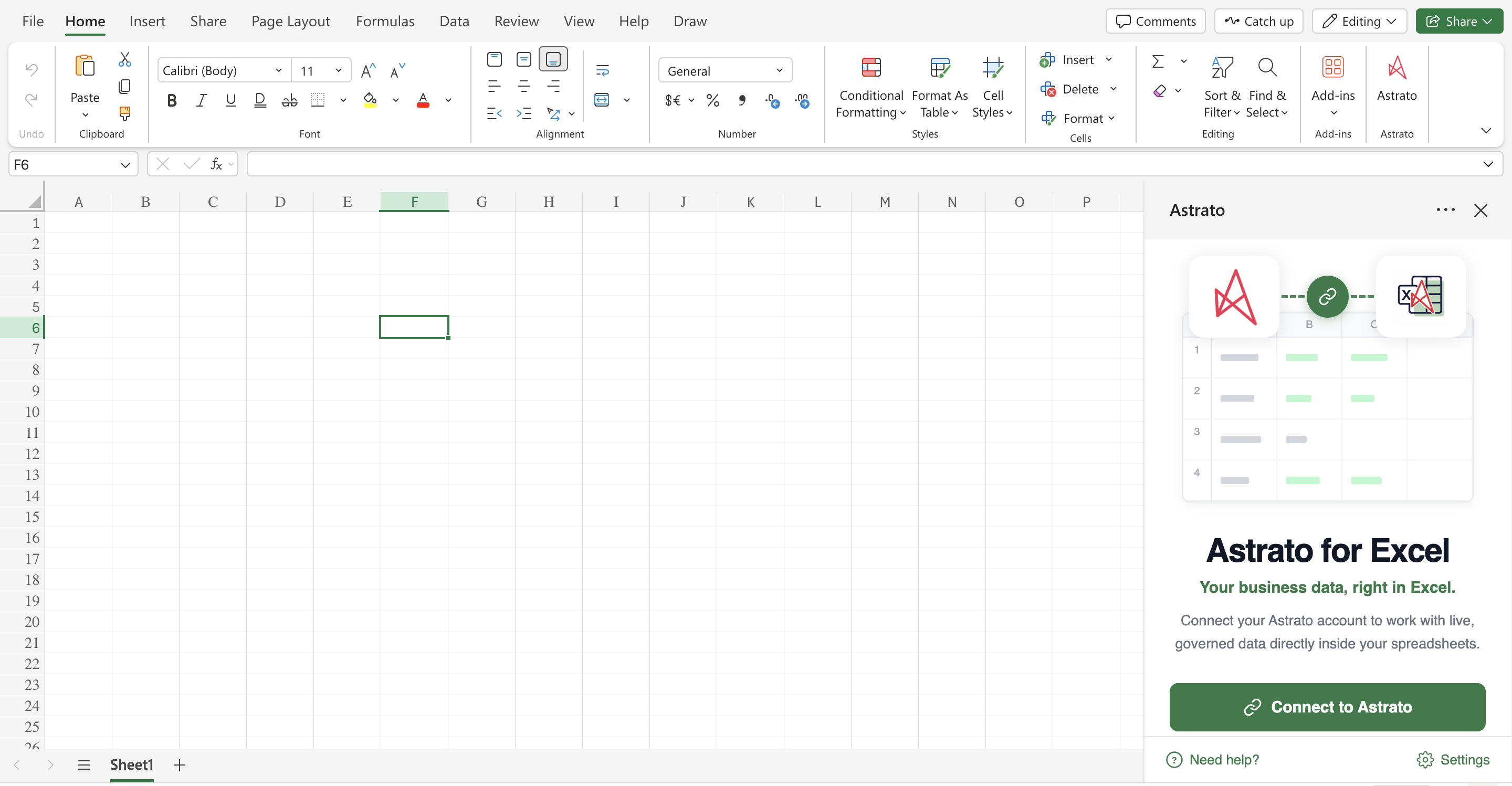
1. Install the Add-in. In Excel, open the Home ribbon, select Add-ins → More Add-ins, search Microsoft Marketplace for Astrato, and click Add. If your IT team has deployed it centrally through the Microsoft 365 admin center, the Astrato button is already on your ribbon — there’s nothing to install.
2. Connect to Astrato. Click the Astrato button to open the panel on the right, then Connect to Astrato. Sign in with your Astrato account (browser-based authentication, or a personal access token if you prefer), and approve the connection. Your credentials are stored in your user-scoped Office settings, not in the workbook.
3. Build a dataset on your Snowflake data. In the panel, create a dataset — a reusable, named query you build once. Pick the semantic layer that sits on your Snowflake data, then choose the dimensions, measures and fields you need and add any filters. Because you’re picking from the governed model, you’re choosing defined metrics, not raw columns.
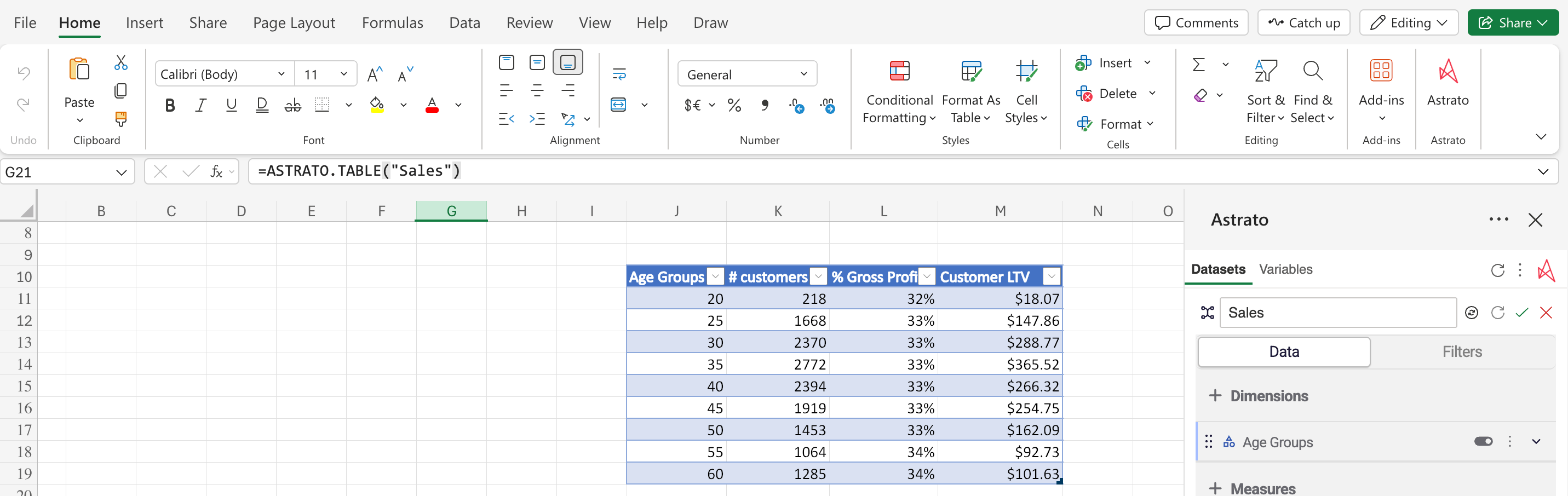
4. Pull it into the grid as a formula. Give the dataset a name and reference it from any cell with a simple function — the result spills into the sheet as a native Excel table you can pivot, chart, and build formulas around. You can also insert it as a formatted Excel table with currency and number formats already applied.
5. Refresh on demand. Next time the numbers change, you don’t rebuild anything — you hit Refresh. Each dataset has a refresh mode, so you decide how live it is: refresh manually, refresh only when there’s no cached result, or refresh whenever the sheet recalculates.
That’s it. From “I need this Snowflake data in Excel” to a refreshable, governed formula in a few clicks — and no driver in sight.
Here's a quick demo:
Governed by design
The reason this matters isn’t convenience, it’s control. The important difference is that Excel isn't querying Snowflake in isolation. It accesses data through Astrato's semantic layer and the user's authenticated connection:
- Every refresh follows the signed-in user’s permissions. Two people can open the same file and refresh it, and each sees only the rows their access allows. Governance follows the person, not the file.
- One definition, everywhere. Because datasets run on the same semantic layer as your dashboards, the number in the spreadsheet is the number on the board deck. Change a measure once and it updates everywhere it’s used.
- Credentials belong to the user, data belongs to the file. Your Snowflake connection is never written into the workbook. Share the file and the recipient reads your last refreshed figures — no login, no exposure of your connection — and refreshes with their own access if they want live data.
For the data team, that’s the win the ODBC route can’t offer: people get warehouse data where they want it, and none of it becomes an ungoverned copy.
It’s real Excel — that’s the point
None of this asks anyone to leave Excel or learn a new interface. The data arrives as genuine Excel formulas, so your existing pivots, charts, models and formatting keep working exactly as they do today. Because the last refresh is cached inside the workbook, the numbers are still there when you’re offline — on a plane, in a boardroom, on a machine that’s never heard of Astrato. You keep the tool your team already knows; you just connect it to data you can trust.
Databricks and BigQuery: the same approach
Everything above is warehouse-agnostic. Because Astrato is warehouse-native, the workflow to connect Databricks to Excel or BigQuery to Excel is identical — build a dataset on the governed model, pull it into the grid as a formula, refresh on demand. The account details and the underlying compute change; the Excel experience doesn’t. If your organization runs more than one cloud data platform, that consistency is its own quiet benefit: one way of working, whatever the data lives on.
Which method should you use?
An even-handed way to decide:
- One-off, ad-hoc extract by a technical user? The Snowflake ODBC driver with Power Query, or a quick CSV export, is fine. You accept the manual refresh and the lack of governance because it’s a throwaway pull.
- A recurring report, shared across a team, that has to stay fresh and governed? A governed add-in is the better shape. You get live, refreshable data, shared definitions, and per-user permissions — without every analyst managing drivers and access.
- A data team trying to reduce ungoverned spreadsheets while still letting people work in Excel? The governed route is the only one that actually helps, because it extends Snowflake’s governance into the spreadsheet instead of leaving it at the door.
The honest summary: the native driver answers “how do I get this data into Excel once?” A governed add-in answers “how does my whole team run on Snowflake data from Excel, safely, month after month?”
When the Excel Add-in isn't the right tool
If you're an analyst doing a one-off exploration of a Snowflake table, standing up Astrato purely to avoid an ODBC connection doesn't make sense. Power Query will get you there faster.
The Excel Add-in is built for organisations already using Astrato's semantic layer, and for the recurring workflows where the same numbers get rebuilt every month — where shared definitions, refreshability and per-user access control are the point. If none of those apply to what you're doing, the connector is the right call.
Frequently asked questions
Do I need the Snowflake ODBC driver to connect Snowflake to Excel?
Not with the Astrato Excel Add-in. It connects Excel to your Snowflake data through Astrato, so there’s no ODBC driver to download, no DSN to configure, and no 32-bit/64-bit version to match. If you use the native Power Query route instead, then yes — you install and maintain the Snowflake ODBC driver yourself.
Can I query Snowflake from Excel with live data?
Yes. With the Add-in, datasets are refreshable on demand, so a formula returns current data when you refresh rather than a fixed extract. You choose how live each dataset is with its refresh mode. With the ODBC/Power Query route, data is also a live query, but you refresh it manually and it caches in the sheet between refreshes.
How does authentication work — does it support SSO to Snowflake?
You authenticate to Astrato (browser-based sign-in or a personal access token), and Astrato holds the governed connection to Snowflake that your data team set up. Snowflake authentication — including SSO, key-pair, and role-based access — is handled at the platform level, so individual analysts don’t wire up Snowflake credentials in Excel at all.
Will the numbers in Excel match our dashboards?
Yes. Datasets are built on the same semantic layer that powers your Astrato dashboards, so definitions are identical. A raw Power Query pull, by contrast, returns tables and columns with no shared metric layer, which is how spreadsheet numbers drift from dashboard numbers.
Does it work on Excel for Mac and Excel on the web?
Yes — Excel on Windows, Mac, and the web. This is one place the native ODBC route struggles: a local ODBC driver isn’t available to Excel on the web, and the Mac experience differs from Windows.
Can I share a workbook with Snowflake data in it safely?
Yes. Your connection and credentials are never written into the file; only the data is. A recipient opens the file and reads your last refreshed figures with no login, and refreshes with their own permissions if they need live data. There’s no connection or password to leak.
What about Databricks or BigQuery?
The same workflow applies. Astrato is warehouse-native, so connecting Databricks or BigQuery to Excel uses the identical dataset-and-refresh flow — only the underlying platform changes.
Is this an ODBC connector or something else?
It’s a Microsoft 365 Office Add-in, not an ODBC data source. It surfaces governed data as native Excel functions and tables rather than as a raw database connection, which is what lets it carry the semantic layer and per-user permissions with it.
Next steps
If your team runs on Snowflake and lives in Excel, the shortest path is to try it on your own data: install the Astrato Excel Add-in, connect to Astrato, and pull your first governed dataset into a cell.
- See how it works on the Excel Add-in product page.
- Read the launch story: Introducing the Astrato Excel Add-in.
- New to Astrato? Book a walkthrough and we’ll run it on your Snowflake data.
Using Snowflake data for monthly reporting? How to build a finance workbook on live Snowflake data →
Worried about spreadsheet governance? Governed Excel: keeping the spreadsheet without losing control →
Need cell-driven scenario modelling? What-if analysis in Excel against governed data →
Sending the workbook to other people? Share Excel files securely when the data is live →
Ready to experience next-gen analytics?
See how Astrato runs natively in your warehouse.