
How to Share an Excel File With Live Data Securely
Sharing a connected Excel file can leak your database credentials or break for the recipient. How to share live-data Excel files securely — cached data travels, no login to read, per-user access.

Sharing a plain Excel file is a solved problem: password-protect it, maybe add a sensitivity label, email it. But the moment the file pulls live data — a connection to a warehouse or database behind it — sharing gets a second, sharper edge.
🛑 Send it as-is and you either hand the recipient your connection and credentials, or hand them a file that breaks the instant they try to refresh it.
This guide covers Excel’s built-in protections, the gap they don’t close for connected files, and how to share live-data workbooks so the numbers travel but your access never does.
TL;DR
- Excel’s built-in tools — password to open (encryption), Protect Workbook / Protect Worksheet, read-only, and sensitivity labels — secure the contents of a file. Use them; they matter.
- None of them solves the specific risk of a connected file: sharing it can leak your connection and credentials, or break for a recipient who has no access to the source.
- The fix is a clear rule: credentials belong to the user, data belongs to the file. With the Astrato Excel Add-in, your connection is never written into the workbook.
- The recipient opens the file and reads your last refreshed data with no login — and it works offline, because the cached result travels with the file.
- To pull live data, they refresh with their own access, so per-user permissions apply and they only ever see what they’re allowed to.
- Use this alongside Excel’s encryption and labels — one protects the file, the other protects the connection.
Excel’s built-in ways to secure a file
If you searched “how to share an Excel file securely,” here’s the native toolbox — worth knowing exactly what each does, and what it doesn’t.
Password to open (file encryption). Under File → Info → Protect Workbook → Encrypt with Password, Excel encrypts the whole .xlsx and requires a password to open it. This is real, file-level encryption — the strongest of the built-in options for confidentiality. The caveats: you have to get the password to the recipient through a separate channel (never in the same email), and if you lose or forget it there’s no easy way to recover the file. A password manager helps.
Protect Workbook (structure). This locks the structure of the workbook — no adding, deleting, hiding or unhiding sheets. It protects the shape of the file, not the data in it, and it doesn’t require a password to open. Useful for preventing unintended changes; not a confidentiality control.
Protect Worksheet (sheet protection). From the Review tab, you can lock specific cells, rows or columns and allow editing only where you want — handy when you need people to enter data in some cells but not touch the formulas around them. Again, it guards integrity, not secrecy.
Read-only / Mark as Final. Discourages edits and signals “this is the final version.” It’s a nudge, not security — anyone can turn it off.
Sensitivity labels (Microsoft Purview). In Microsoft 365, you can classify a file — Confidential, Highly Confidential — and, depending on your policy, the label can enforce encryption and restrict who can open it. This is the enterprise-grade way to keep sensitive data, PII or financials out of the wrong hands, and it travels with the file.
A note on OneDrive and SharePoint sharing. Microsoft 365’s built-in sharing — co-authoring a file through a link — is excellent for collaborating on the file itself, controlling who can view or edit through Microsoft’s permissions and avoiding the version-control mess of emailing copies around. But it governs access to the document, not to the data source behind it. A co-author with edit rights to the workbook still inherits whatever connection the file carries. So link-sharing and the credentials-with-the-user model solve different halves of the problem: one controls who touches the file, the other controls whether touching the file exposes your source.
These are all good practice, and for a static file full of sensitive information, encryption plus a sensitivity label is genuinely strong. But notice what they all have in common: they protect the contents of the file. A file that’s connected to a live data source has a second thing to worry about — the connection itself.
Three kinds of Excel file, three sharing risks
It helps to be clear about which kind of file you’re actually sharing, because the risk is different for each.
- A static file — values typed or pasted in, no connection. The only risk is the contents: who can open it and who can change it. Excel’s encryption, sensitivity labels and sheet protection cover this well.
- A connected file with embedded credentials — it pulls from a source, and the connection lives inside the workbook. Now you have both risks: the contents and the connection. Encrypting the file protects the first and does nothing for the second, because the credentials sit inside the encrypted file, inherited by anyone who opens it.
- A governed, credential-free file — it can pull live data, but the connection lives with the user, not the file. The contents are still yours to protect with encryption and labels; the connection simply isn’t in the file to leak.
Most “how do I secure my Excel file” advice is written for the first kind. The moment your file talks to a warehouse, you’re in the second — and the goal is to get to the third.
The gap: a connected file has credentials, not just contents
The moment a workbook can pull fresh data, it carries a connection to the source. And that’s where the usual sharing advice runs out, because a connected file has exactly two ways to go wrong when you send it:
- It leaks your access. If the connection and its credentials are stored in the file, sharing the file shares your keys to the source. Password-protecting the workbook doesn’t help — a password locks the file, but the connection string and credentials are inside the thing you just locked. Anyone who can open it inherits your access.
- It breaks for the recipient. If the connection depends on drivers, a DSN, or permissions the recipient doesn’t have, they open the file and the refresh simply fails. Now you’re emailing a static screenshot of the data anyway, which is where we started.
So the connected-file version of “share this securely” is a genuine dilemma: leak your credentials, or hand over something that doesn’t work. Encryption and sensitivity labels are essential for the file’s contents, but they were never designed to solve this. You need the connection itself to work differently.
The rule that fixes it: credentials belong to the user, data belongs to the file
The clean resolution is a separation of concerns. The data — your last refreshed figures — should travel with the file, so a recipient can read it. Your credentials should never travel with the file, so sharing can’t leak your access. That’s exactly how the Astrato Excel Add-in handles it.
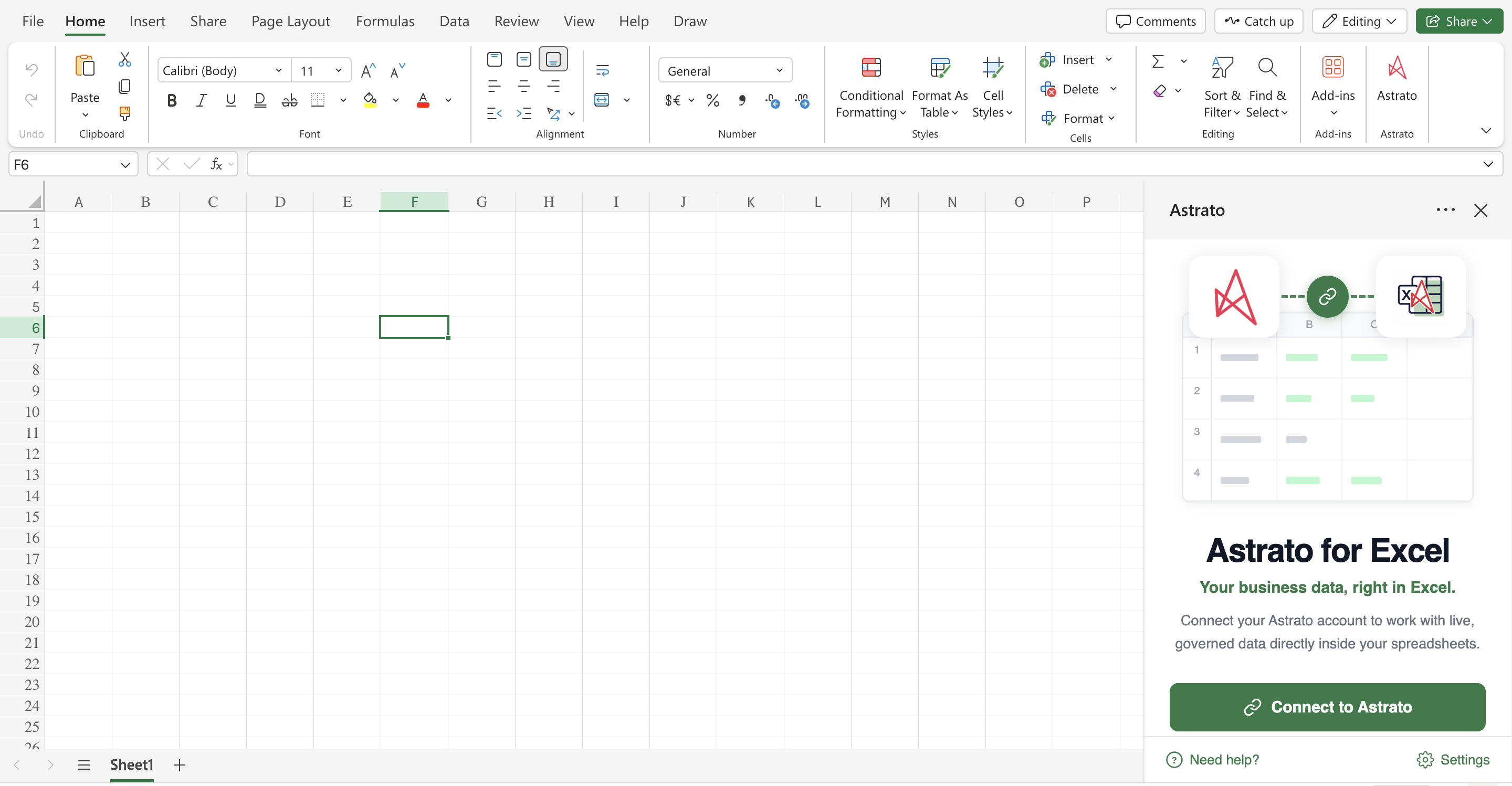
Your connection is never written into the workbook. Tokens and connection details live in your own user-scoped Microsoft 365 settings, not inside the file. There is simply no credential in the workbook to leak — so a password on the file, or a sensitivity label, now protects contents that don’t contain your keys.
Cached data travels with the file. The result of your last refresh is stored inside the workbook. So a recipient opens it and reads those figures immediately — no login, no access request, no connection to configure. And because the data is cached in the file, it works offline: the numbers are there on a plane, in a boardroom, on a laptop that’s never heard of your data platform.
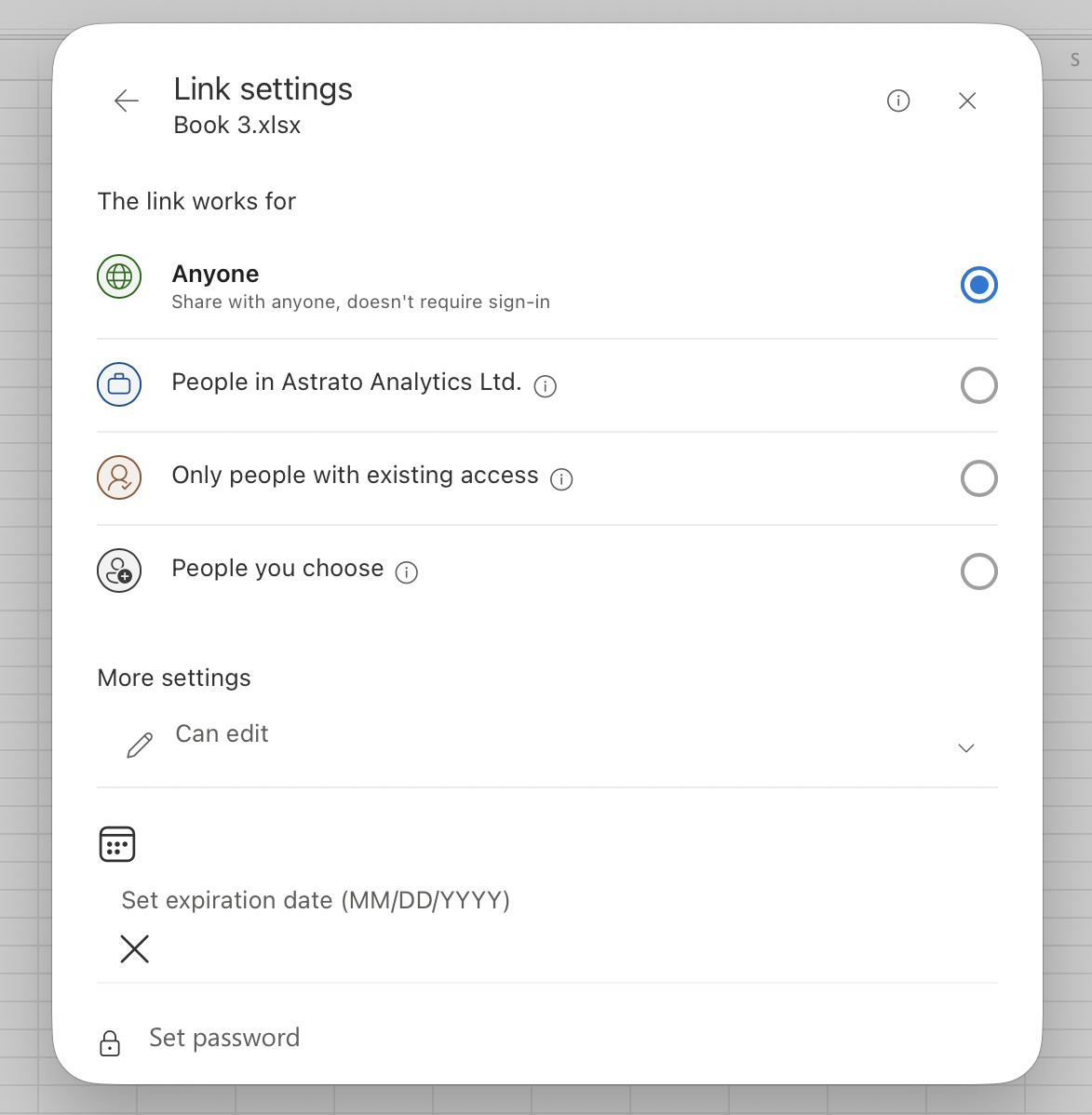
To refresh, the recipient uses their own access. If they want live data rather than your last snapshot, they authenticate with their own account and refresh. Which means per-user permissions apply on their refresh — a regional reviewer sees only their territory, not everything you can see. Access follows the person, never the file.
The sensitivity label carries over. When governed data is inserted, the sensitivity label from the source is applied to the workbook automatically, and if the file already has a stricter label, that one wins. Your classification travels with the data instead of being stripped off.
What the recipient actually experiences
Walk it through from the other side, because that’s where the usual approach falls down.
You finish a report and email the file to a colleague or an executive. They open it. The numbers are right there — your last refresh — with nothing to sign into and nothing to configure. If they’re offline, it still works. If they have their own access and want the latest figures, they hit Refresh, authenticate as themselves, and the data updates within their permissions. At no point did they see, use, or need your credentials, and at no point were your credentials in the file for anyone to extract.
That’s the difference between “secure” as a property you bolt onto a file after the fact, and secure as a consequence of how sharing works in the first place.
Use it alongside Excel’s protections, not instead of them
This isn’t a replacement for encryption or sensitivity labels — it’s the missing layer beside them. For a file that contains sensitive information, you’d still password-protect or encrypt it and apply the right sensitivity label to control who can open it at all. What the credentials-with-the-user model adds is that, on top of those, the file no longer carries your keys to the source. Belt and suspenders: Excel’s tools protect the file’s contents; the Add-in makes sure there’s no connection or credential in those contents to protect in the first place.
A worked example: sending the board pack
You’ve built a board pack on live, governed data — revenue, margin, the KPI summary. It’s confidential, so you apply your organisation’s Confidential sensitivity label (which travels with the file) and, per policy, encrypt it with a password you send the CFO through a separate channel.
Then you email the file. The CFO opens it — with the password — and reads the latest figures immediately, no data-platform login required, even from the back of a taxi with no signal. Nothing in that file exposes your warehouse connection: your token stayed in your own Microsoft 365 settings the whole time.
When the CFO wants the freshest numbers before the meeting, they refresh with their own access, and see exactly what their permissions allow. And if the pack gets forwarded on — as board packs always are — there’s still nothing in it that exposes your warehouse: the person two hops away reads the cached figures, or refreshes with their own account, exactly as the CFO did.
The pack was protected as a file and safe as a connection — two different jobs, both done.
Best practices for sharing live-data Excel files
- Encrypt files with sensitive data, and share the password separately. File-level encryption plus a password sent through a different channel is still the baseline for confidentiality. A password manager saves you from the “lost the password, lost the file” trap.
- Apply sensitivity labels. Let your Microsoft Purview labels classify and, where policy dictates, enforce access — and make sure they travel with exported or shared data.
- Never store credentials in the file. This is the one the built-in tools can’t give you. Keep the connection in user settings so sharing can never leak it.
- Set the right refresh behaviour for shared copies. A shared file should show cached figures to a reader without needing your connection; live refresh should require the reader’s own access.
- Prefer a governed connection to raw exports. A raw export strips governance and lineage; a governed, refreshable dataset keeps them — and keeps sensitive data classified.
- Be cautious with macro-enabled files from others. Unfamiliar .xlsm files can carry VBA that spreads malware — a good reason to keep shared reporting to standard, connection-safe workbooks.
- Revoke by access, not by chasing files. Because a shared file carries no live connection of its own, you don’t have to track down every copy when someone leaves — refreshing depends on their account, which your admin controls centrally.
Frequently asked questions
How do I share an Excel file with live data securely?
Use a model where the data travels with the file but your credentials don’t. With the Astrato Excel Add-in, your connection lives in your own Microsoft 365 settings, never in the workbook, and the last refresh is cached in the file — so a recipient reads the numbers with no login, and refreshes with their own access if they want live data. Layer Excel’s encryption and sensitivity labels on top for the file’s contents.
Does password-protecting the workbook stop credentials leaking?
No. A password encrypts and locks the file, but if the connection and credentials are stored inside it, they’re inside the thing you locked — anyone who opens it inherits them. The fix is to not store credentials in the file at all.
Can the recipient open the file without an account?
Yes. They read your last refreshed figures from the cache in the file, with no login. An account is only needed if they want to refresh to live data — and then they authenticate as themselves, within their own permissions.
Does it work offline?
Yes. The cached result travels with the file, so the numbers are readable with no connection at all. Fresh data loads when the recipient refreshes online with their own access.
What about sensitivity labels and encryption?
Use them. Sensitivity labels from the source are applied to the file automatically, and you can still encrypt with a password or apply a stricter label yourself. This model complements those controls — it removes the credential from the file, which encryption alone can’t do.
Will the recipient see everything I can see?
Only if their permissions allow it. When they refresh, it runs as them, so per-user (row-level) security applies — they see their scope, not yours. The cached snapshot shows your last refresh; a live refresh is theirs.
Can I make a shared copy read-only or restrict editing?
Yes. Excel’s read-only, Mark as Final, and sheet protection all still work to limit editing and lock specific cells or the workbook structure. Just remember those control edits to the file, not access to the data source behind it — the credential-safety comes separately, from keeping the connection out of the file.
Is a raw export ever fine?
For a throwaway, non-sensitive figure, sure. But an export strips governance, lineage and classification, and can’t refresh — so for anything recurring or sensitive, a governed, refreshable file is both safer and more useful.
Next steps
If sharing a connected report has ever meant choosing between leaking your access and sending something that doesn’t work, there’s a better default.
- See how governed data lands in — and shares from — Excel on the Excel Add-in product page.
- For the wider picture, read Live, governed data in Excel.
- Book a walkthrough and we’ll show secure sharing on your own data and permissions.
Ready to experience next-gen analytics?
See how Astrato runs natively in your warehouse.